
[Windows] Troubleshooting Windows' Connection Pane Error (Device not Found Error)
Are you facing the below issue while configuring your Elhi. If you have done your basic checks (as mentioned in the FAQs), you can try troubleshooting as per the below steps.
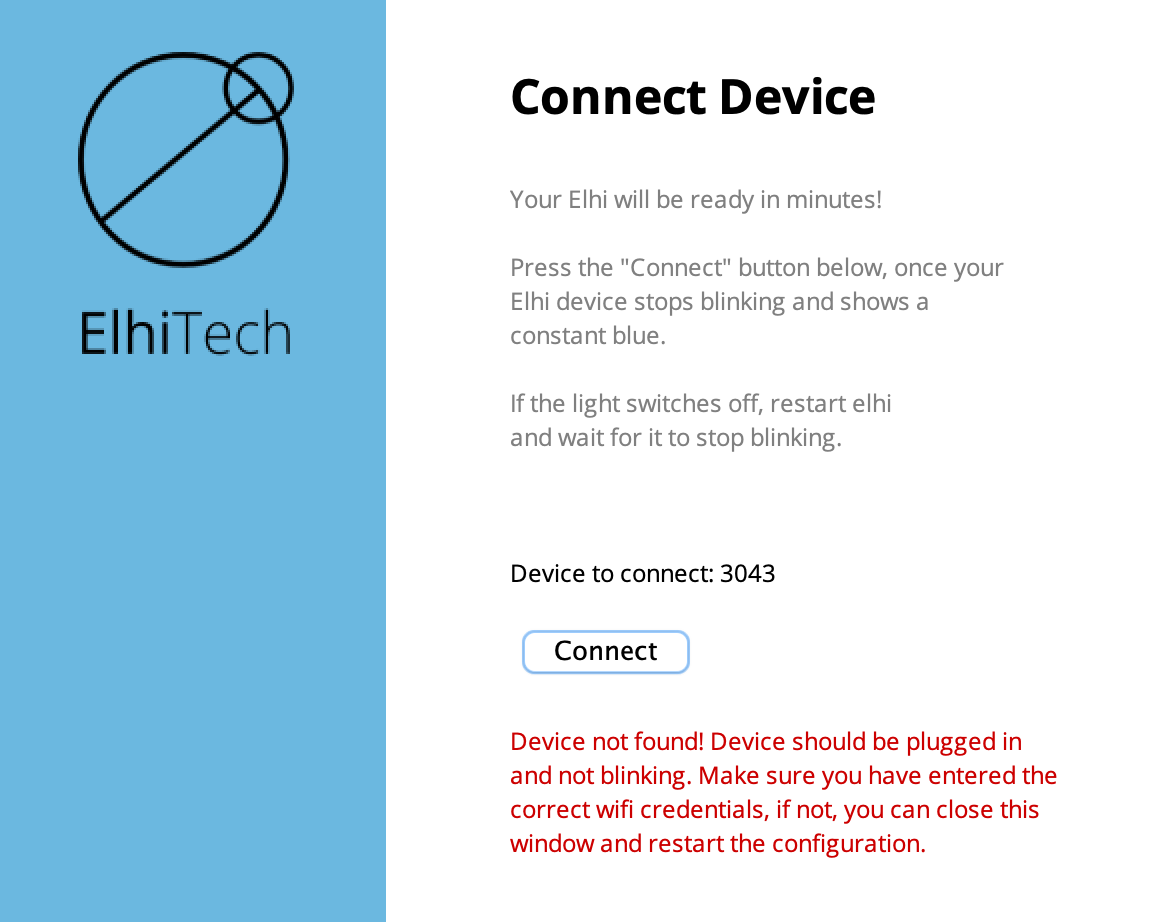
Elhi works on mDNS discovery for finding your Elhi device over the WiFi. In certain networking configurations and depending on the Windows version, mDNS discovery might give issues intermittently. To solve these issues, please follow the below guide. Feel free to contact us if you find yourself stuck anywhere.
- Open the "Command Prompt" as an Administrator.
- First, try to run the ping command to check if your computer is able to reach Elhi. Since it's not able to connect, we should be getting an error. Type in
ping elhi_(Serial Number).localand press enter. For example, if your Elhi's serial number is 9800, type inping elhi_9800.local. If you are getting an error proceed with the below steps, else restart your Elhi application and try connecting again. - The first step will be to add a registry entry to allow mDNS Discovery. In the command prompt windows, run the command.
REG ADD "HKLM\Software\Policies\Microsoft\Windows NT\DNSClient" /V "EnableMulticast" /D "0" /T REG_DWORD /F - Once done, restart your computer.
- Download and install "Bonjour for Windows" from here. Bonjour helps windows with mDNS discovery.
- Try again pinging the Elhi device as described in the second step. Try a few times as it might take time for the Bonjour service to get up and running. You should be able to see a successful result this time. If you are still facing issues, please contact us.